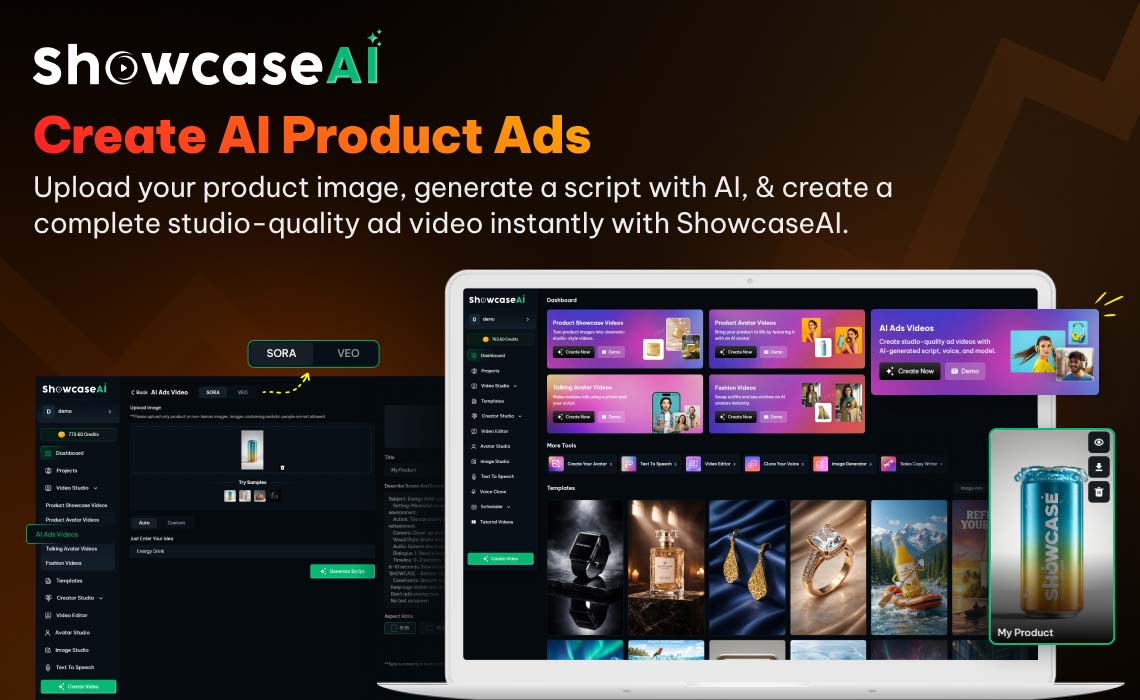

Turn product images into complete AI-powered advertisement videos in seconds.
Creating professional product advertisements usually requires scripting, filming, voice recording, and video editing. For many businesses, this process can take hours or even days to complete.
With ShowcaseAI, you can create studio-quality product ad videos automatically using artificial intelligence. The platform generates the script, voice narration, and video scenes for you, making the entire process simple and fast.
All you need to do is upload a product image, provide a basic idea for the advertisement, and let the AI generate the video for you.
In this guide, you will learn exactly how to create a complete AI-powered product advertisement using the AI Ads feature in ShowcaseAI.
Let us begin.
Create Product Ads with AI
Creating product advertisements traditionally requires multiple steps. You need to plan the script, shoot footage, record a voiceover, and edit everything together. This process can take days or even weeks.
With AI Ads in ShowcaseAI, the entire process becomes simple and fast. The system automatically generates the script, adds voice narration, and creates a complete video advertisement. All you need is a product image and a basic idea of what you want the ad to say.
The platform even provides AI models that help structure the video and generate the script in seconds. This means you can create multiple ad variations quickly and test which one performs best.
Now, let us go through the exact steps.
Step 1: Go to ShowcaseAI

Start by opening ShowcaseAI in your browser and logging into your account.
Once you are inside the dashboard, locate the tool called AI Ads.
Click on AI Ads to open the ad creation interface.
This section is specifically designed to help users create product advertisement videos automatically using artificial intelligence.
Step 2: Choose an AI Model
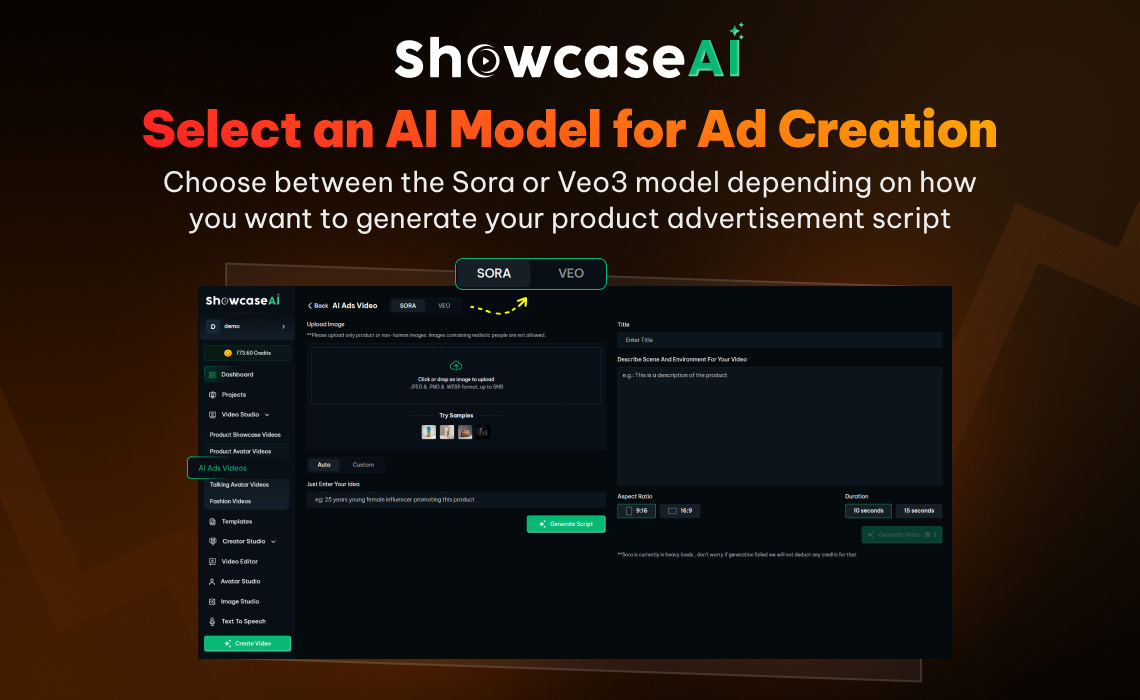
Inside the AI Ads section, you will find two AI models available for creating advertisements.
- Sora
- Veo3
Each model helps generate product ad videos but offers slightly different ways to create the script.
Sora provides more flexibility by giving you two script generation options.
Veo3 focuses on a faster and simpler workflow.
Select the model that fits your needs before continuing.
Step 3: Upload Your Product Image
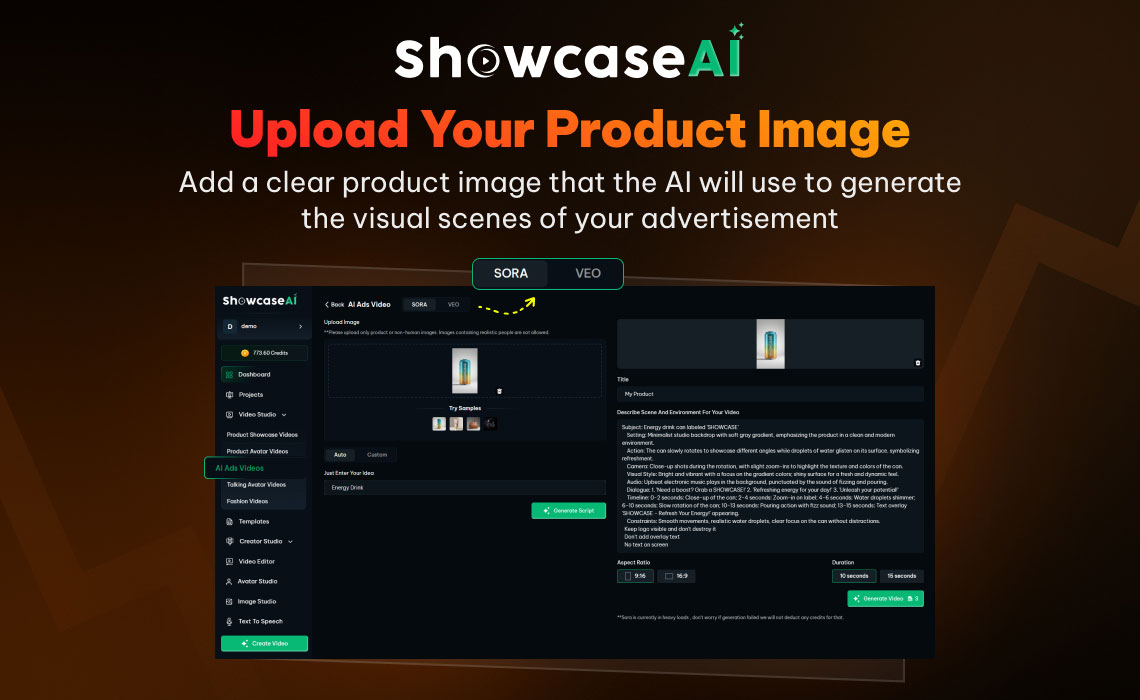
The next step is to upload the product image you want to advertise.
Click on the upload option and add a clear image of your product. The AI will use this image to design the visual scenes inside the advertisement video.
For the best results:
- Use a high-quality product photo
- Make sure the product is clearly visible
- Avoid blurry or dark images
Once the image is uploaded successfully, you can move on to script generation.
Step 4: Generate the Script in Sora
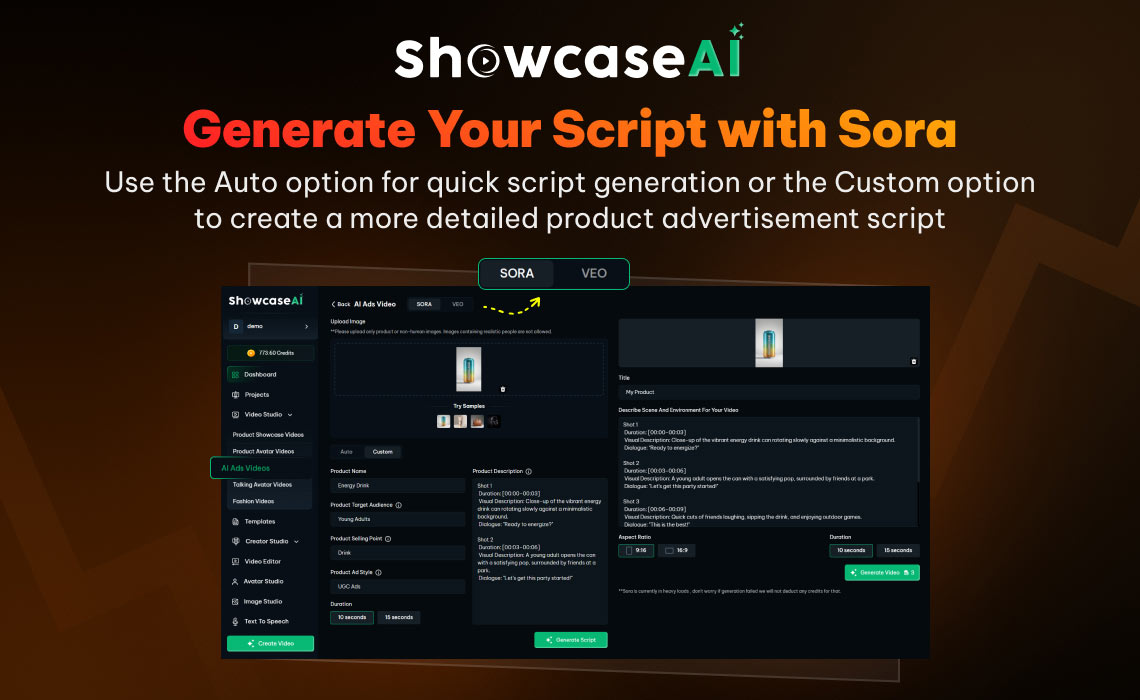
If you selected Sora, you will see two different script generation options.
Auto Script
The Auto option is the fastest method. Simply enter your main idea or short concept about the product.
For example, you might write a short description of what the product does or what problem it solves.
After entering the idea, the AI will automatically generate a complete advertisement script for you.
Custom Script
The Custom option gives you more control over the script.
Instead of only writing an idea, you provide a few details about your product. This can include:
- Product name
- Key benefits
- Target audience
- Marketing tone
Using this information, the AI will generate a script tailored specifically to your product.
Step 5: Generate the Script in Veo3
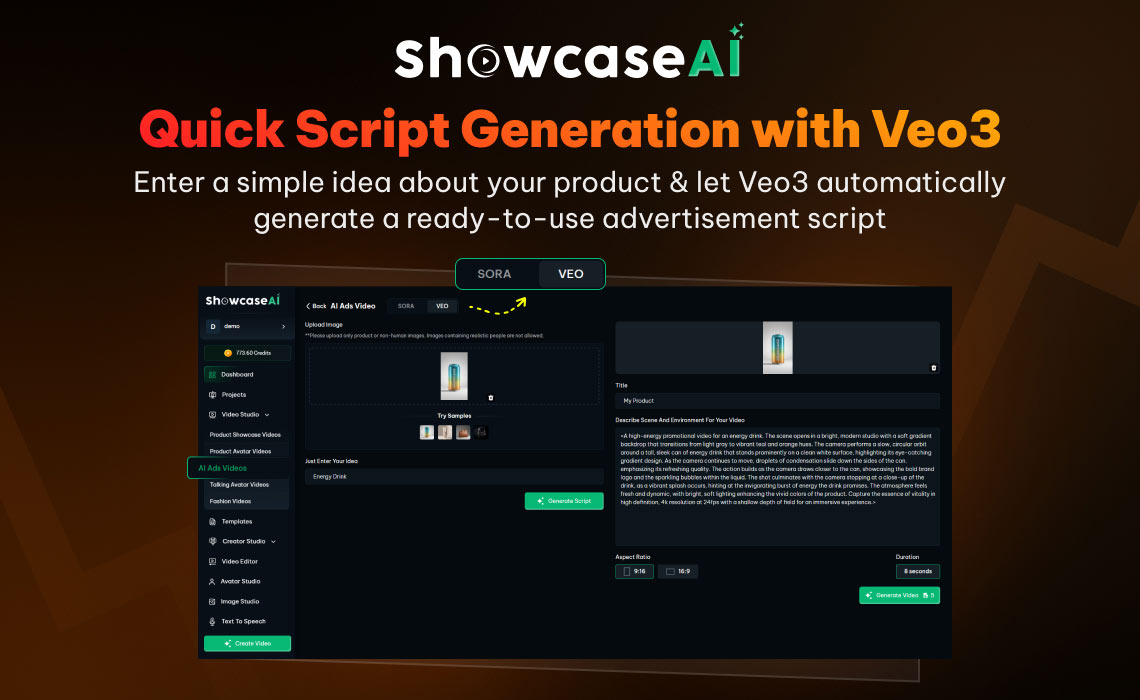
If you selected Veo3, the process becomes even simpler.
Veo3 provides a single Auto option to generate your script quickly.
You only need to enter a short idea or concept related to your product.
The AI then creates a ready-to-use advertisement script automatically.
This option is perfect if you want to generate ad videos quickly without spending time customizing the script details.
Step 6: Enter Video Details
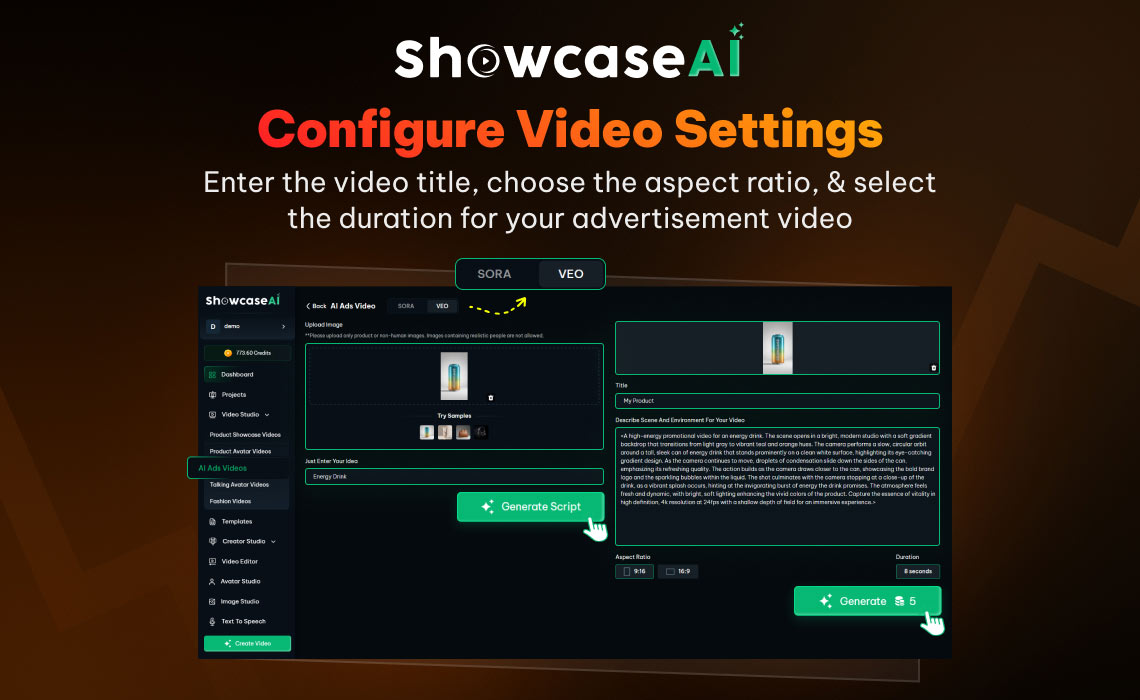
Once your script is ready, the next step is to configure the video settings.
First, enter the video title. This helps organize your projects and identify the ad later.
Next, select the aspect ratio of your video.
The aspect ratio determines the shape and format of the final video. Choose the format depending on where you plan to publish the advertisement.
For example:
- Vertical format works best for social media reels
- Square format works well for social feeds
- Wide format is suitable for website videos or YouTube
After selecting the aspect ratio, choose the video duration.
Shorter ads work well for quick social media promotions, while slightly longer ads are useful for product explanations.
Step 7: Generate the AI Ad Video
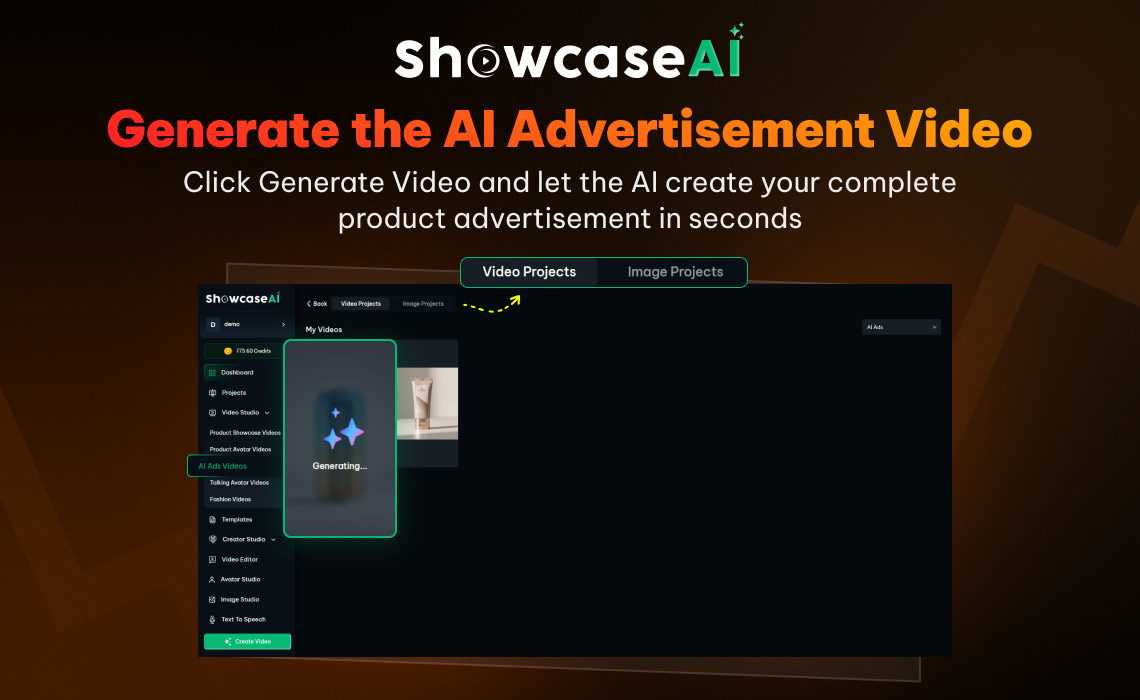
After entering all the required details, the final step is simple.
Click on Generate Video.
The AI will now begin creating your advertisement video.
Within a few seconds, the system will:
- Apply the generated script
- Add voice narration
- Build visual scenes around your product image
- Produce a complete advertisement video
Once the process is finished, the video preview will appear on your screen.
Step 8: Preview and Download Your Ad
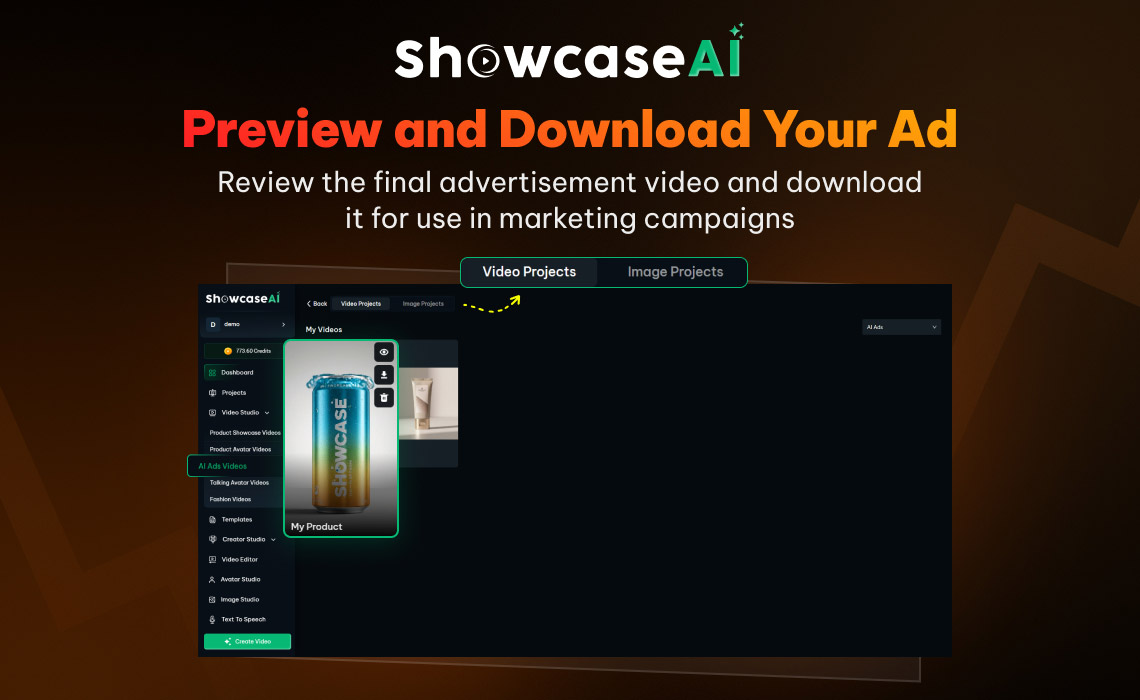
After the video is generated, watch the preview carefully.
Check that the script, visuals, and voice narration match your expectations.
If you are satisfied with the result, download the final video file.
You can now use this AI-generated advertisement for:
- Social media marketing
- E-commerce product pages
- Online advertisements
- Promotional campaigns
Your AI Product Advertisement Is Ready
That is it.
You have successfully created a complete product advertisement using ShowcaseAI.
With just a product image and a simple idea, the platform automatically generates a script, voice narration, and a professional ad video. This makes it possible to produce marketing content quickly without needing advanced editing skills or expensive production equipment.
Businesses can now create multiple ad variations, test different marketing messages, and launch campaigns faster than ever before.
ShowcaseAI simplifies the entire workflow.
You upload your product image.
You generate the script.
You create the video.
Your AI-powered advertisement is ready.