Turn your image into a talking digital twin that looks like you, sounds like you, and creates videos in seconds.
Imagine having a digital version of you that never stops working. A version that speaks for your brand, presents your products, and delivers your message anytime you need it. That is exactly what you can create with ShowcaseAI. In this guide, we will follow the exact steps shown in the reference video and script, without adding extra processes or changing the workflow. If you follow each step carefully, you will have your own realistic AI avatar ready within seconds.
Let us begin.
Imagine Having a Digital Version of You
The idea is simple. You create an AI avatar that looks like you, sounds like you, and talks like you. This avatar becomes your digital twin. It can be used for talking videos, product demonstrations, fashion videos, and more. Instead of recording yourself every time, you simply enter a script and generate a video.
The best part is the speed. The entire avatar creation process takes just a few seconds once you upload your image or video.
Now let me show you how to make one.
Step 1: Go to ShowcaseAI
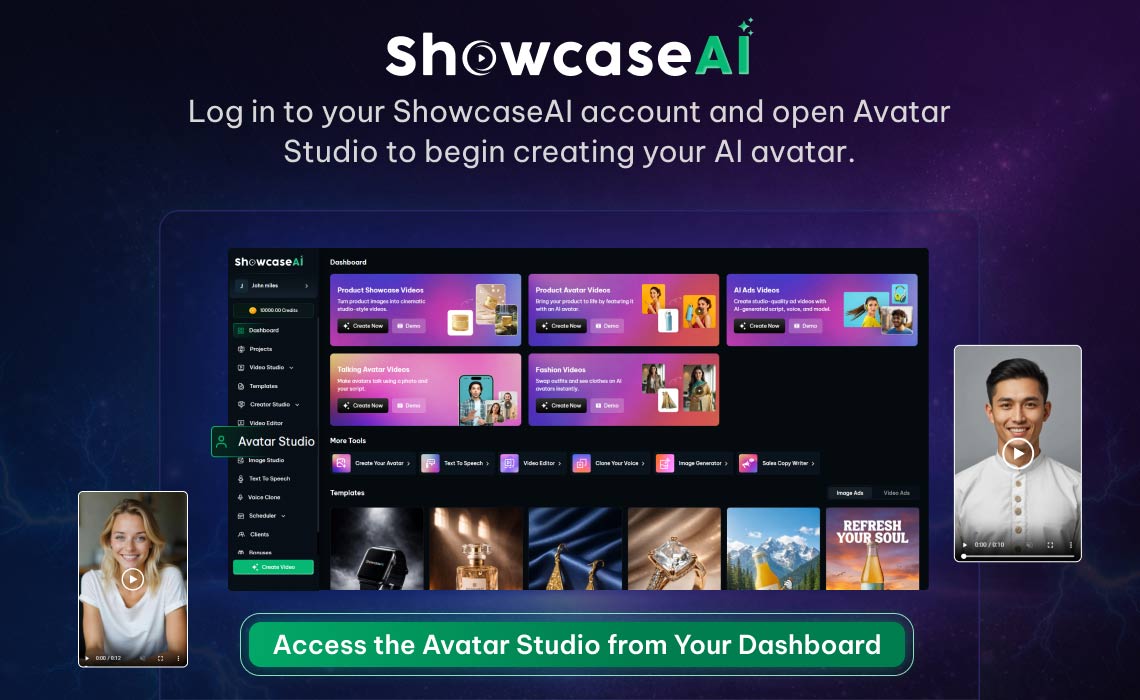
Start by opening ShowcaseAI and logging into your account.
Once you are inside the dashboard, locate the section labeled ‘Avatar Studio‘.
Click on Avatar Studio to begin the process.
This is where all avatar creation and management happens.
Step 2: Choose Between AI Avatar and My Avatar
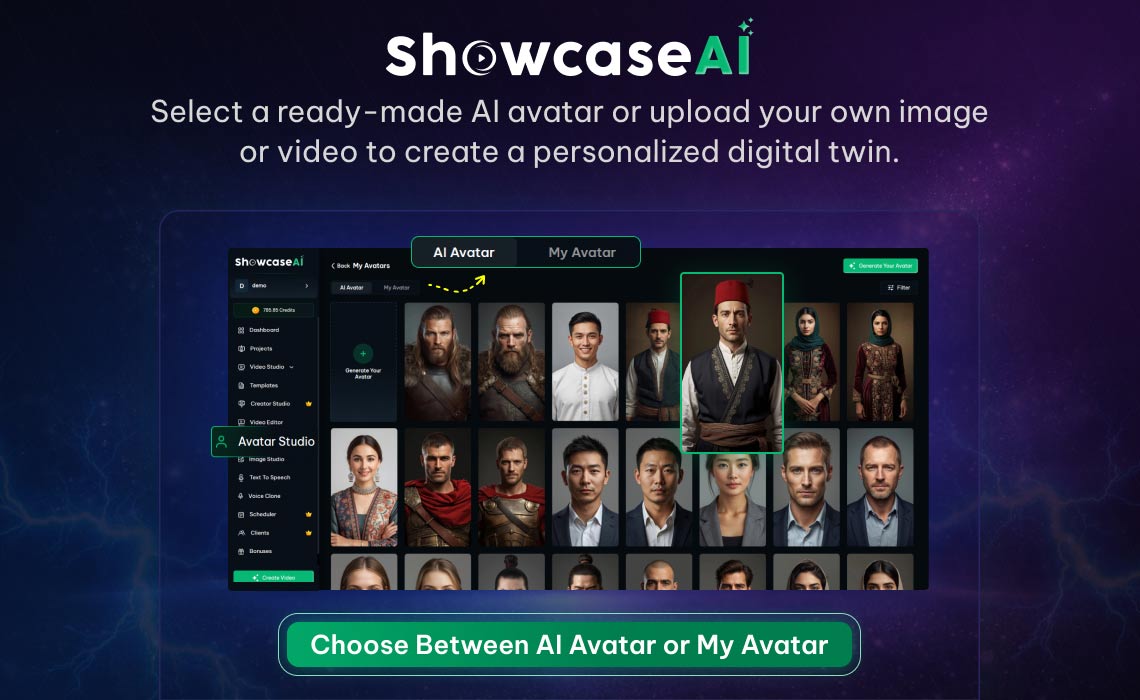
Inside Avatar Studio, you will see two options:
- AI Avatar
- My Avatar
You can choose from pre-made AI avatars if you prefer ready-made digital characters.
Or you can upload your own image or video to create a personalized avatar that represents you.
Select the option that fits your goal.
Step 3: Enter Avatar Details and Upload Your Image or Video
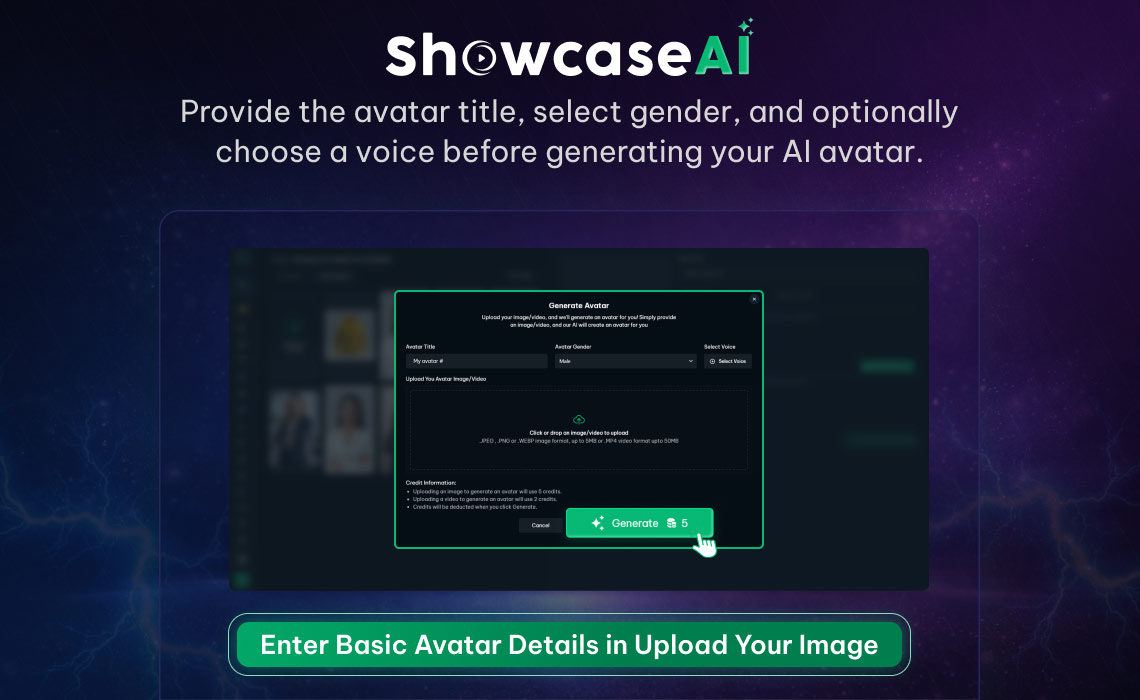
After selecting your preferred option, click on Generate AI Avatar.
You will now need to enter a few simple details:
- Avatar Title
- Gender
You will also see a voice selection option.
Choosing a voice is optional at this stage. You can skip it if you want and select a voice later during video creation.
Once you have filled in the details, upload your image or video file.
For best results:
- Use a clear, front-facing image
- Ensure proper lighting
- Avoid dark or blurry photos
If you are uploading a video, keep it short and natural.
After uploading your file, click on Generate.
The system will now process your file and create your AI avatar.
Step 4: Your Avatar Is Ready in Seconds
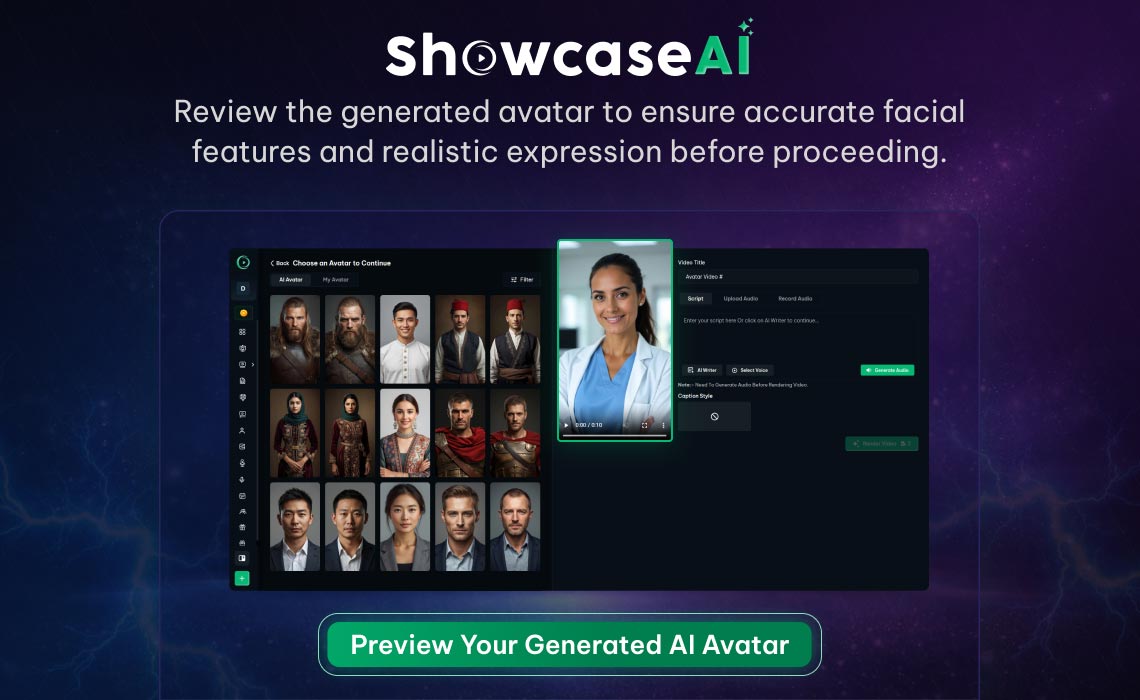
In just a few seconds, your AI avatar will be ready.
Preview the avatar to check how it looks.
This digital version of you will:
- Looks like you
- Sound like you (if voice selected)
- Talk like you
If needed, you can regenerate using a different image for better results.
Once satisfied, move to the next stage.
Customize Your Avatar Look with Image Studio
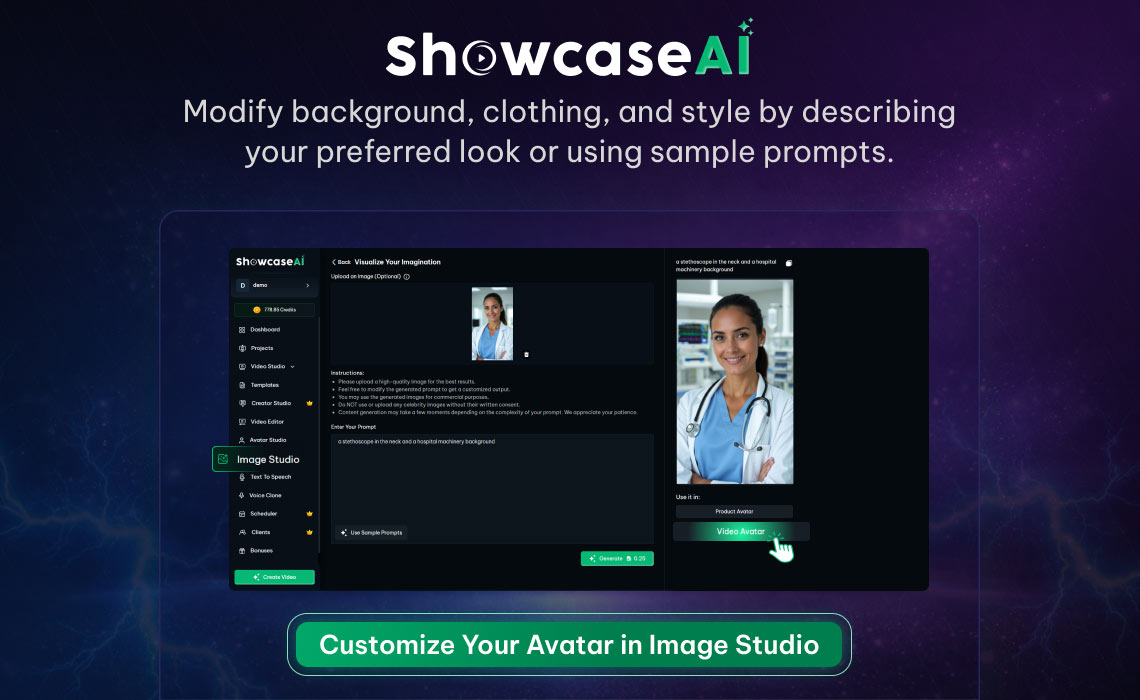
If you want to customize your avatar further, use Image Studio.
Go to Image Studio from the dashboard.
Upload your image again and describe how you want it to appear.
You can describe:
- Background
- Clothing
- Style
For example, you might write:
“Professional background, formal clothing, clean lighting.”
You can also use one of the sample prompts provided inside Image Studio.
After entering your description, click on Generate.
The system will create a refined image based on your instructions.
No Image? Use a Sample Prompt
If you do not have an image available, there is no problem.
Simply use one of the sample prompts inside Image Studio.
Select a prompt and click Generate.
The system will automatically create a high-quality image for you.
You can then use that generated image to create your AI avatar.
Step 5: Go to Video Avatar and Enter Details
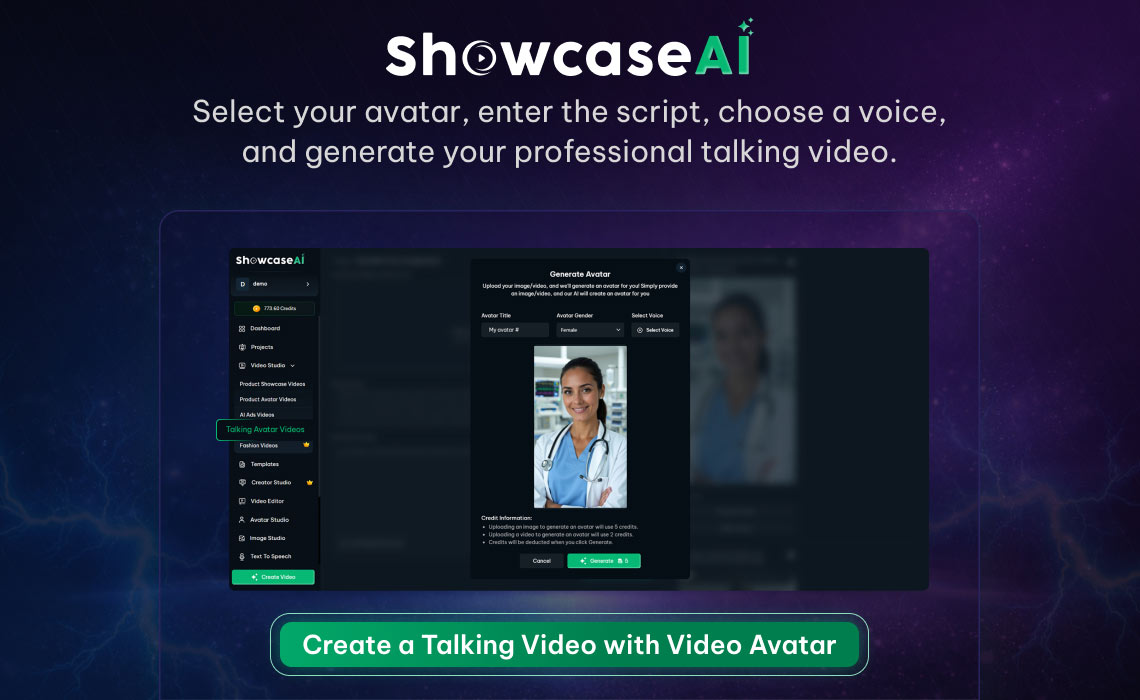
Once everything looks perfect, go to Video Avatar.
This is where you turn your avatar into a talking video.
Select the avatar you created.
Now enter the required details:
- Video title
- Description
- Script
Paste the script you want your avatar to speak.
For example:
“Imagine having a digital version of you that never stops working. This is mine. I created this realistic AI avatar using ShowcaseAI…”
After entering the script, choose a voice.
Select the voice that best matches your tone and audience.
Step 6: Click Generate
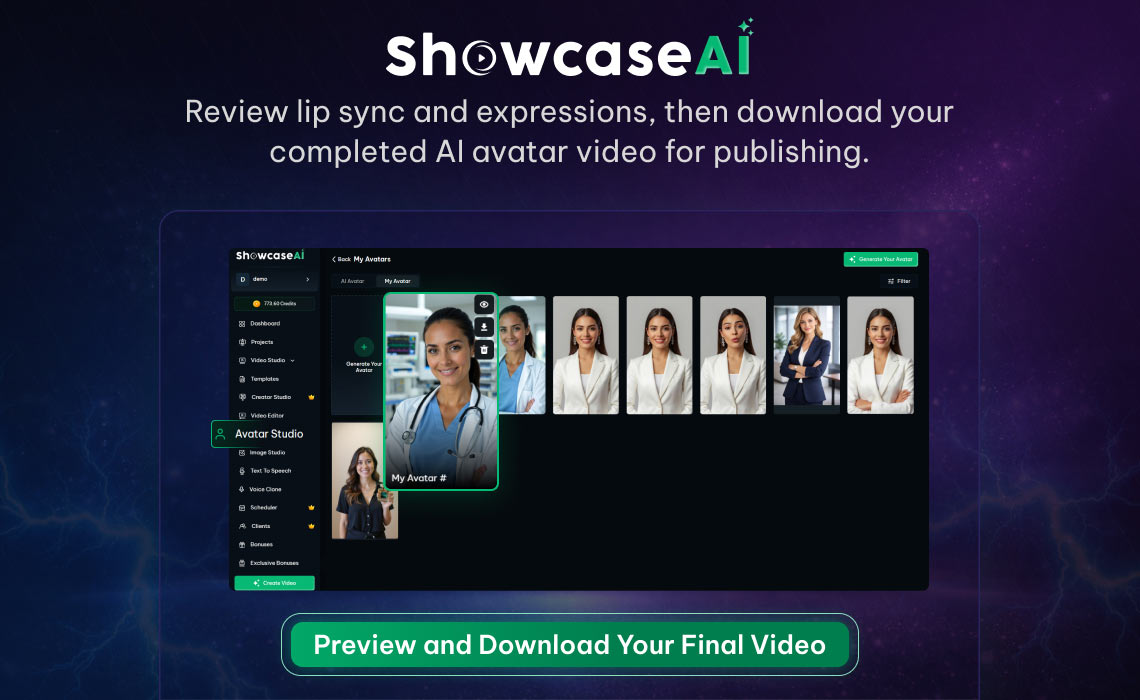
After filling in all details, click on Generate.
Within seconds, your talking avatar video will be ready.
The system will:
- Sync lip movement
- Apply natural expressions
- Generate clear speech
Preview the video carefully.
If everything looks good, download your final file.
Your Digital Twin Is Ready
That is it.
Your digital twin is now ready to create content for you.
You can now use it to generate:
- Talking Avatars
- Product Videos
- Fashion Videos
- Marketing Content
All without recording yourself again.
Welcome to the Future of Content
Creating an AI avatar with ShowcaseAI is simple and fast. From Avatar Studio to Image Studio to Video Avatar, the process is streamlined and easy to follow.
- You upload.
- You generate.
- You customize.
- You create.
Your digital version is ready to work whenever you need it.
Welcome to the future of content with ShowcaseAI.